

Access Data Package (Receiver View)
Once an external party receive a link to the data package, password is required in order to access asset data and documents.
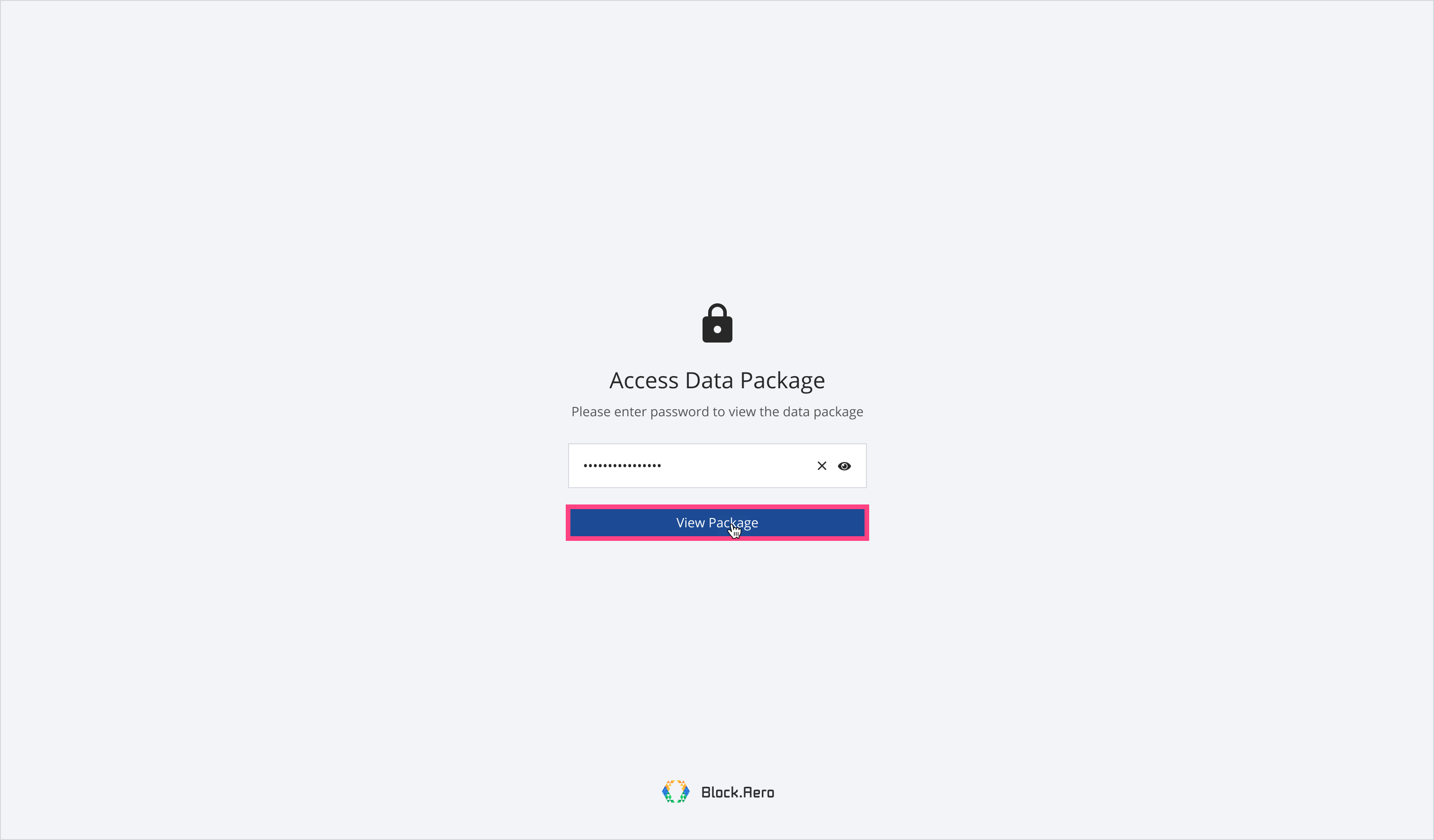
Step 1: Enter password and then click 'View Package'.
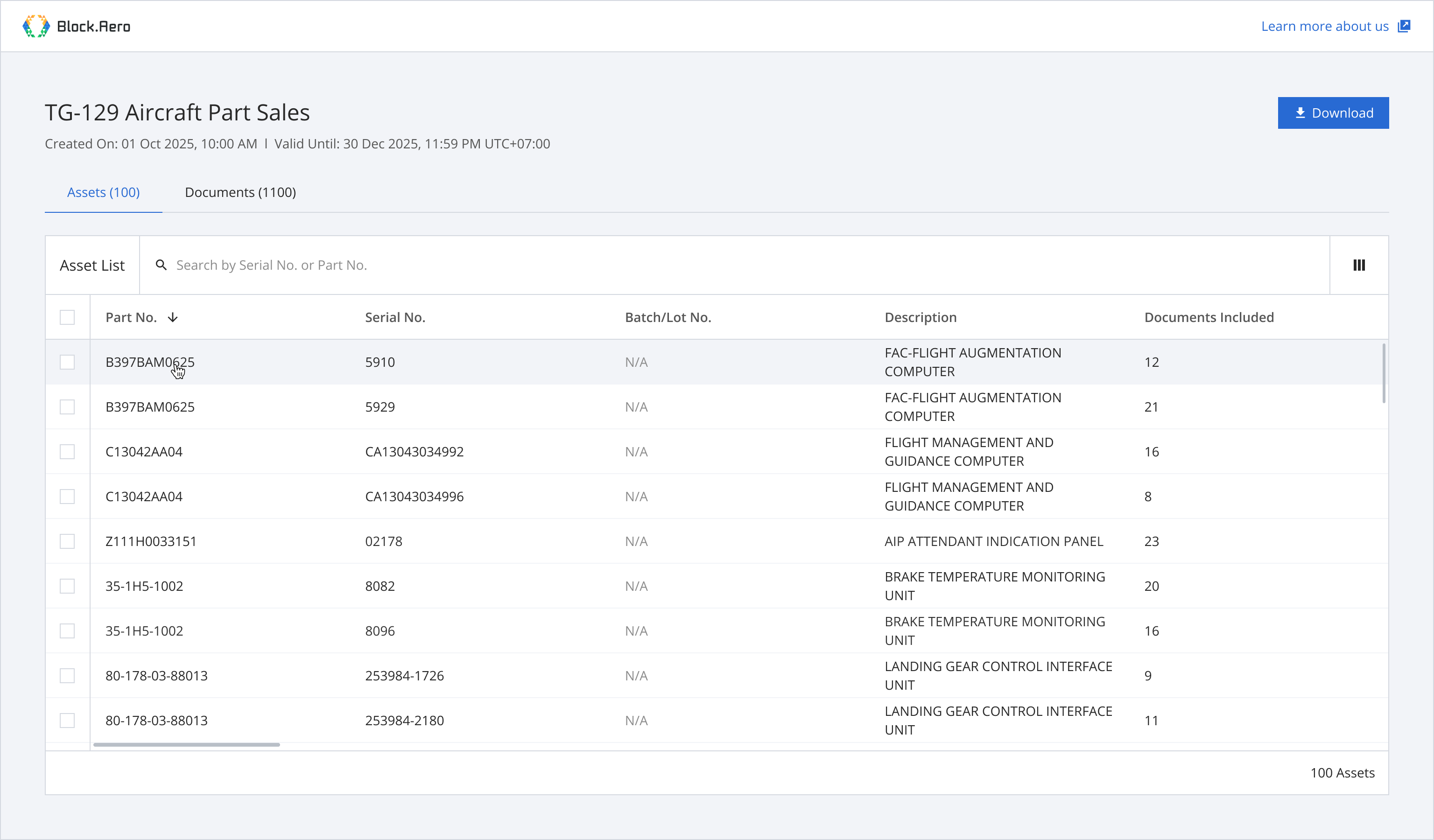
Step 2: From the asset list, open asset you want to view asset details.
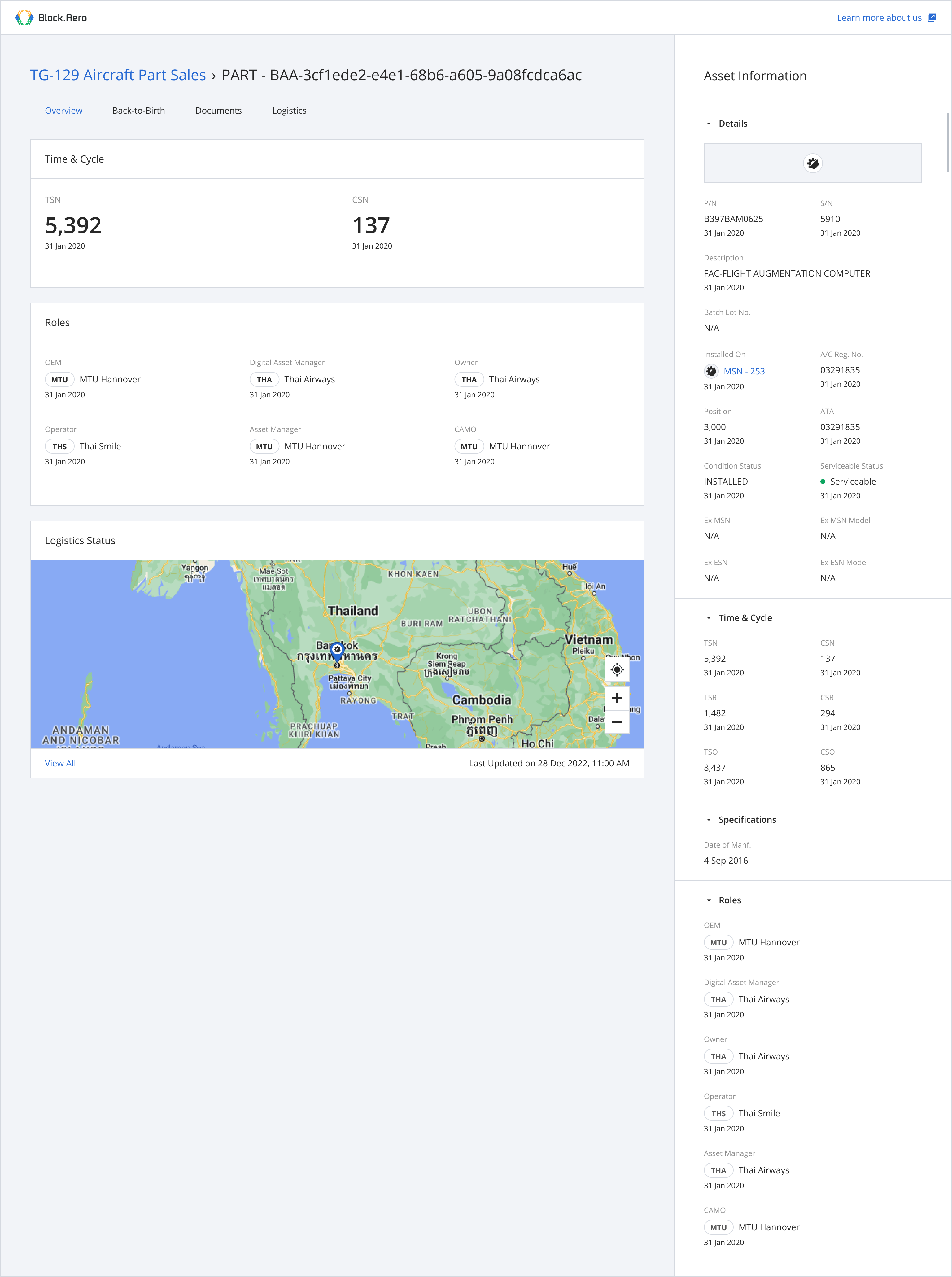
Step 3: View asset details.
Alternatively, a data package creator can access a data package (Receiver View) from Data Package Details pages.
Within the Data Package, you can view asset details and download documents.
There are 3 ways to download documents:
Option 1: Download All Documents
Option 2: Download Documents From Asset List
Option 3: Download Documents From Document List
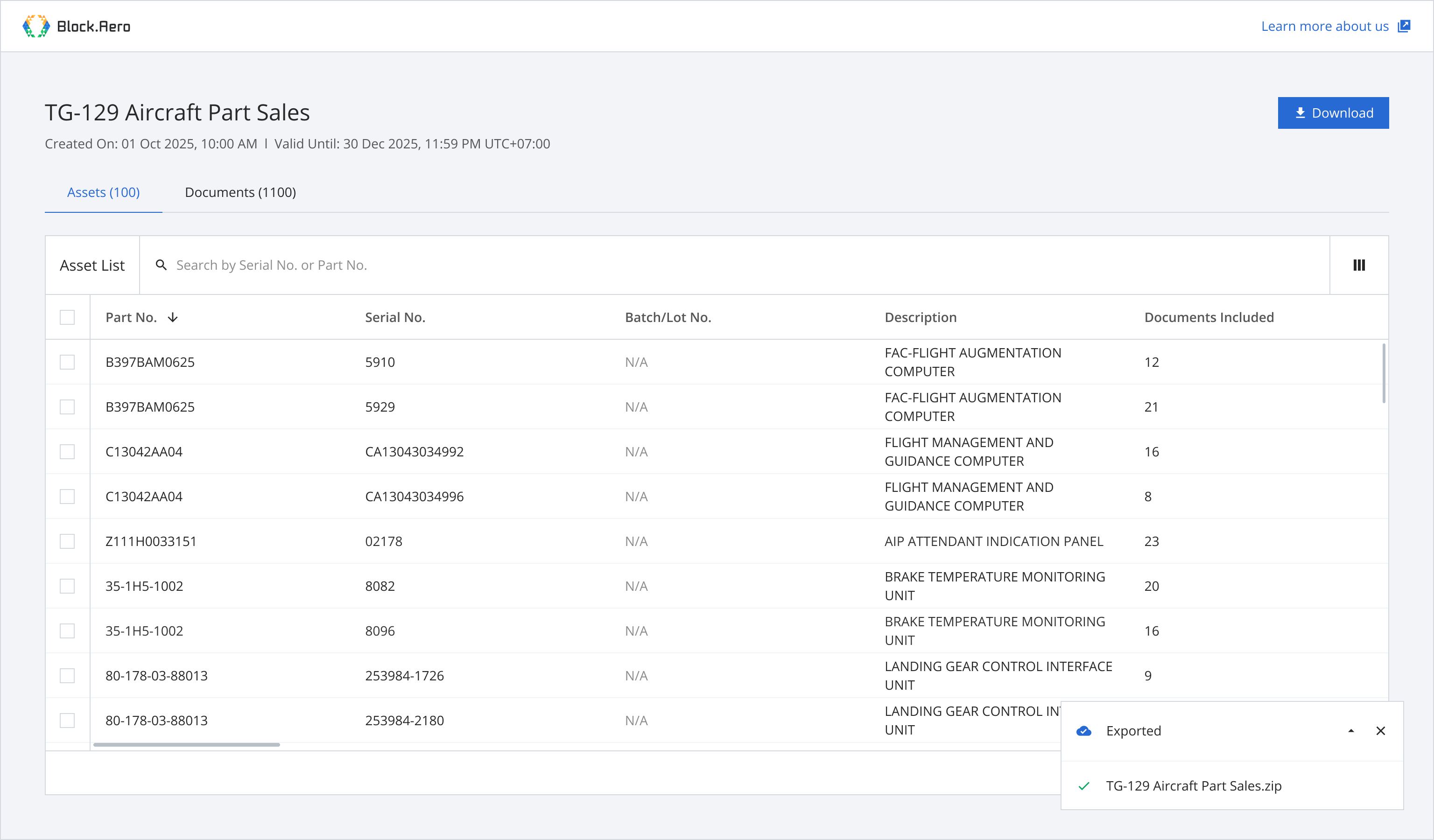
Download All Documents
Step 1: Click 'Download' to download all documents.
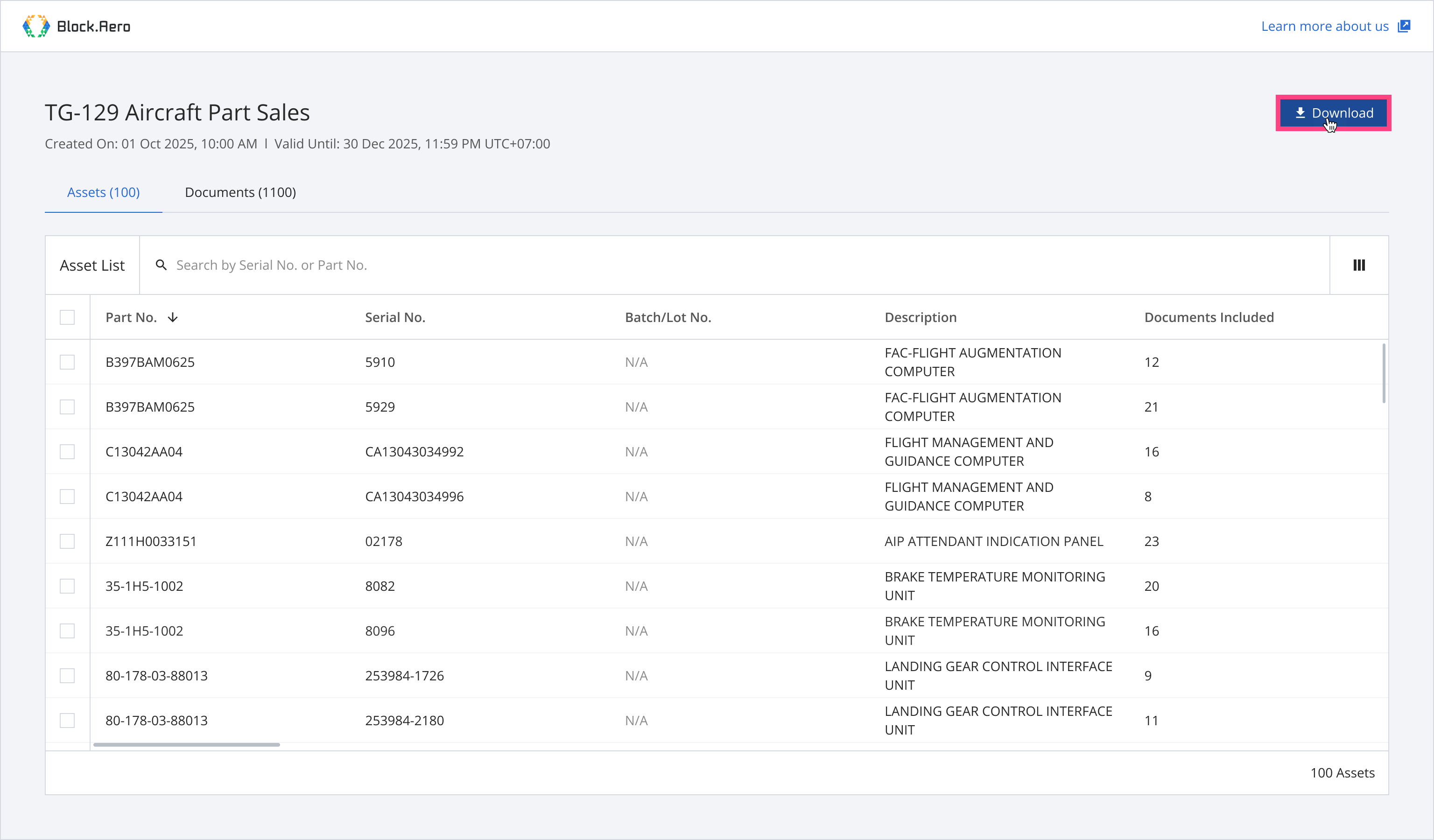
Once the documents are successfully downloaded, a success message will appear at the bottom of the screen.
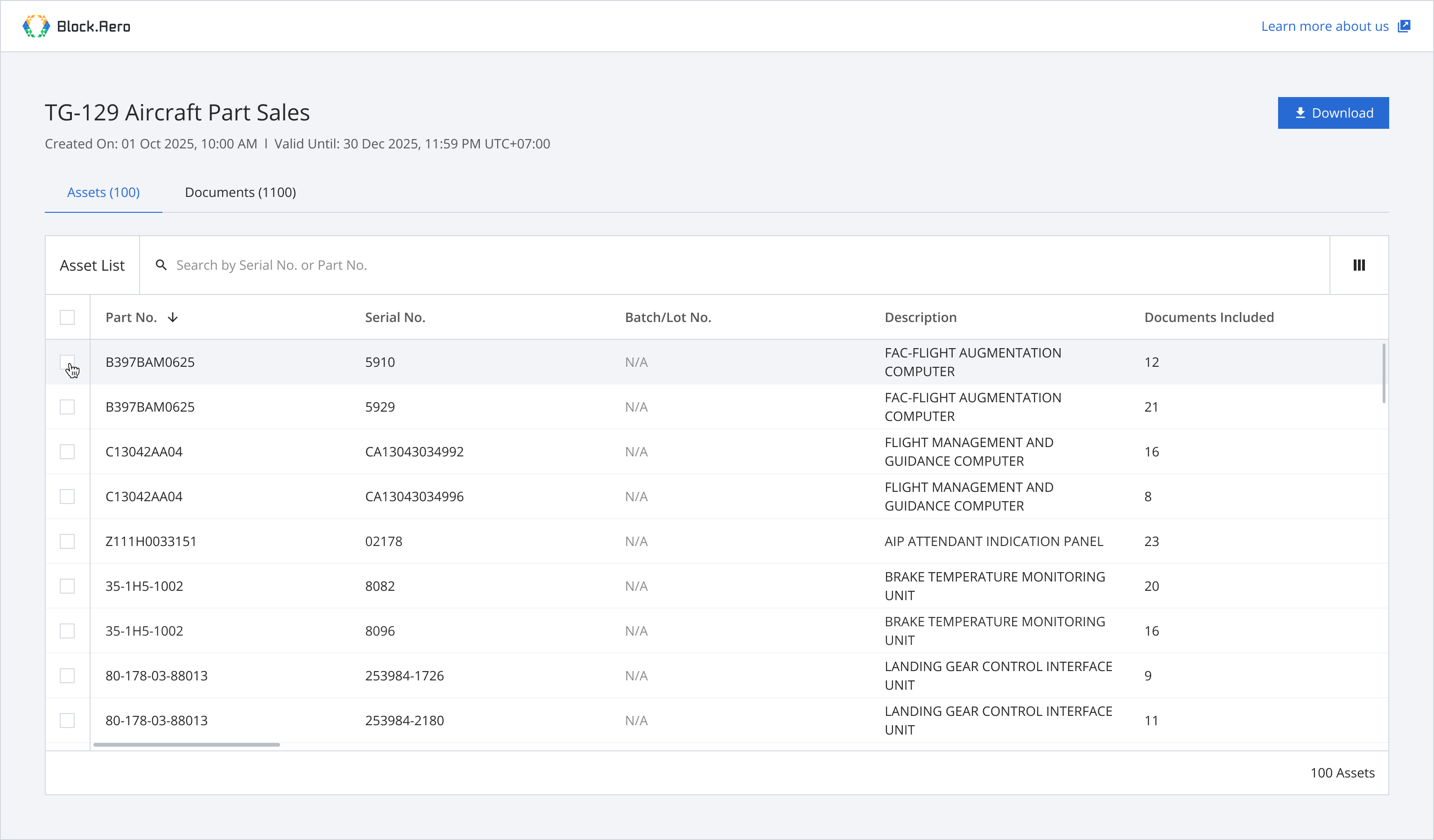
Download Documents From Asset List
Step 1: From the asset list, select assets you want to download documents.
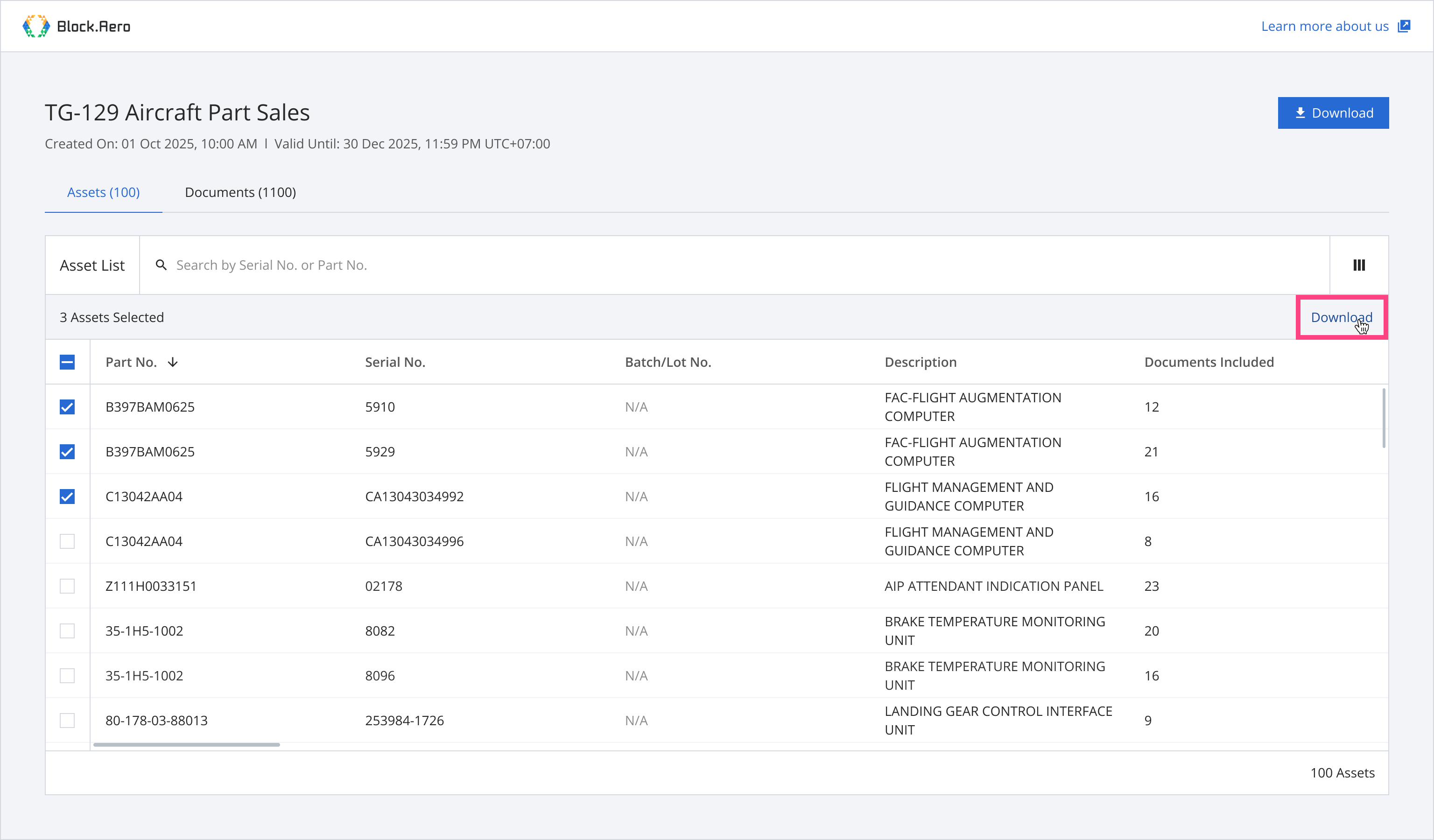
Step 2: Click 'Download'.
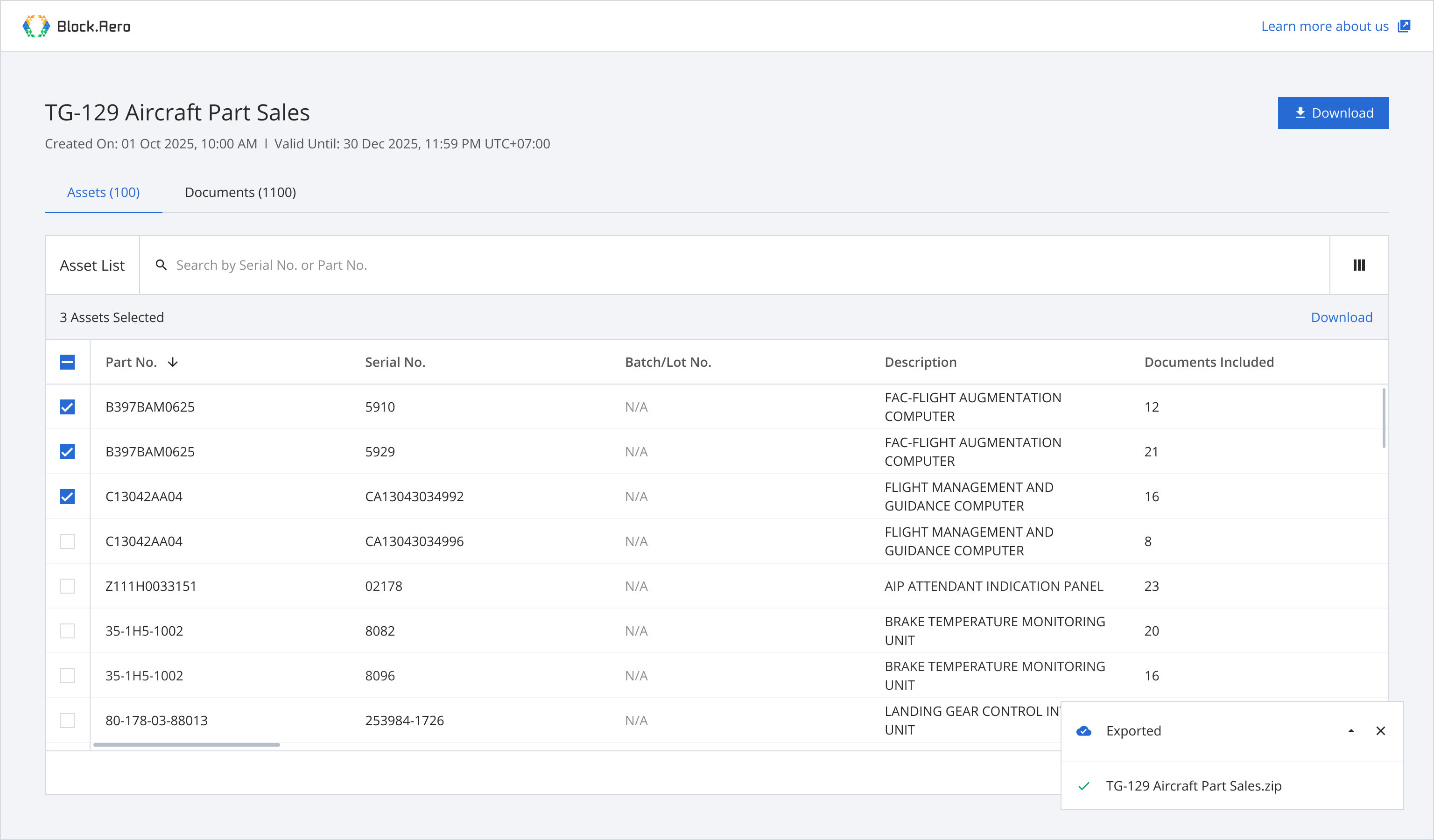
Once the documents are successfully downloaded, a success message will appear at the bottom of the screen.
Download Documents From Document List
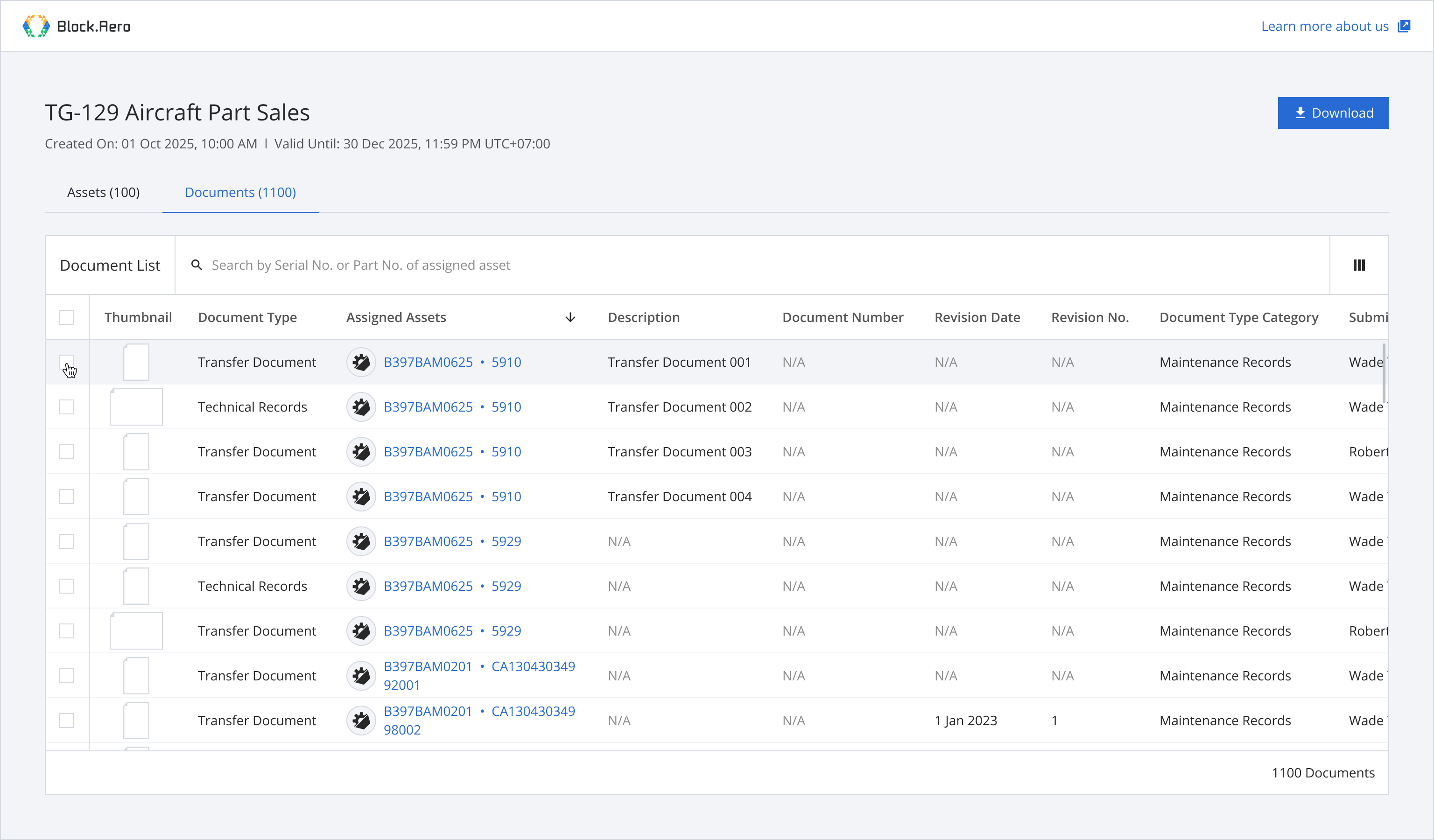
Step 1: From the document list, select documents you want to download.
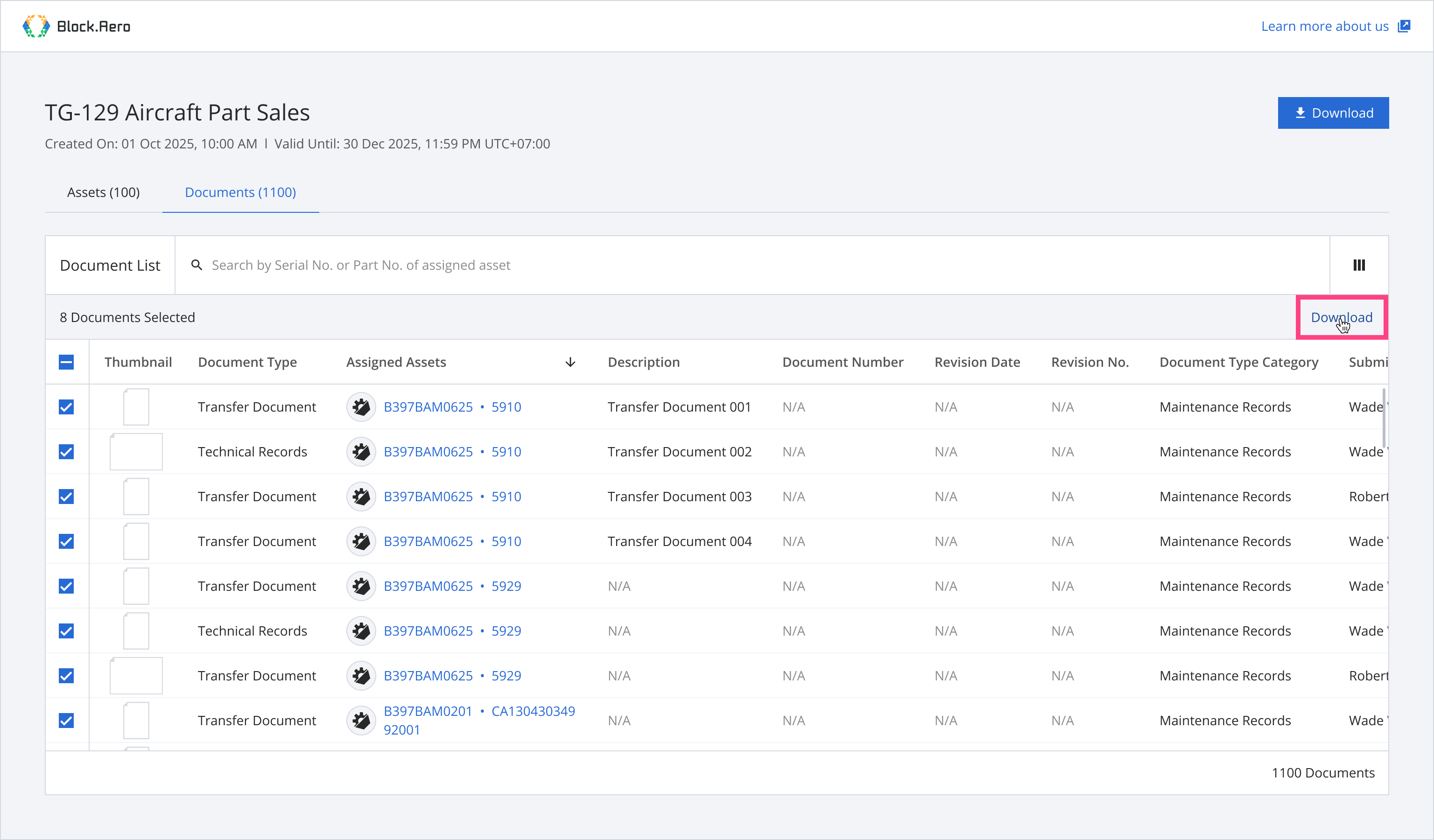
Step 2: Click 'Download'.
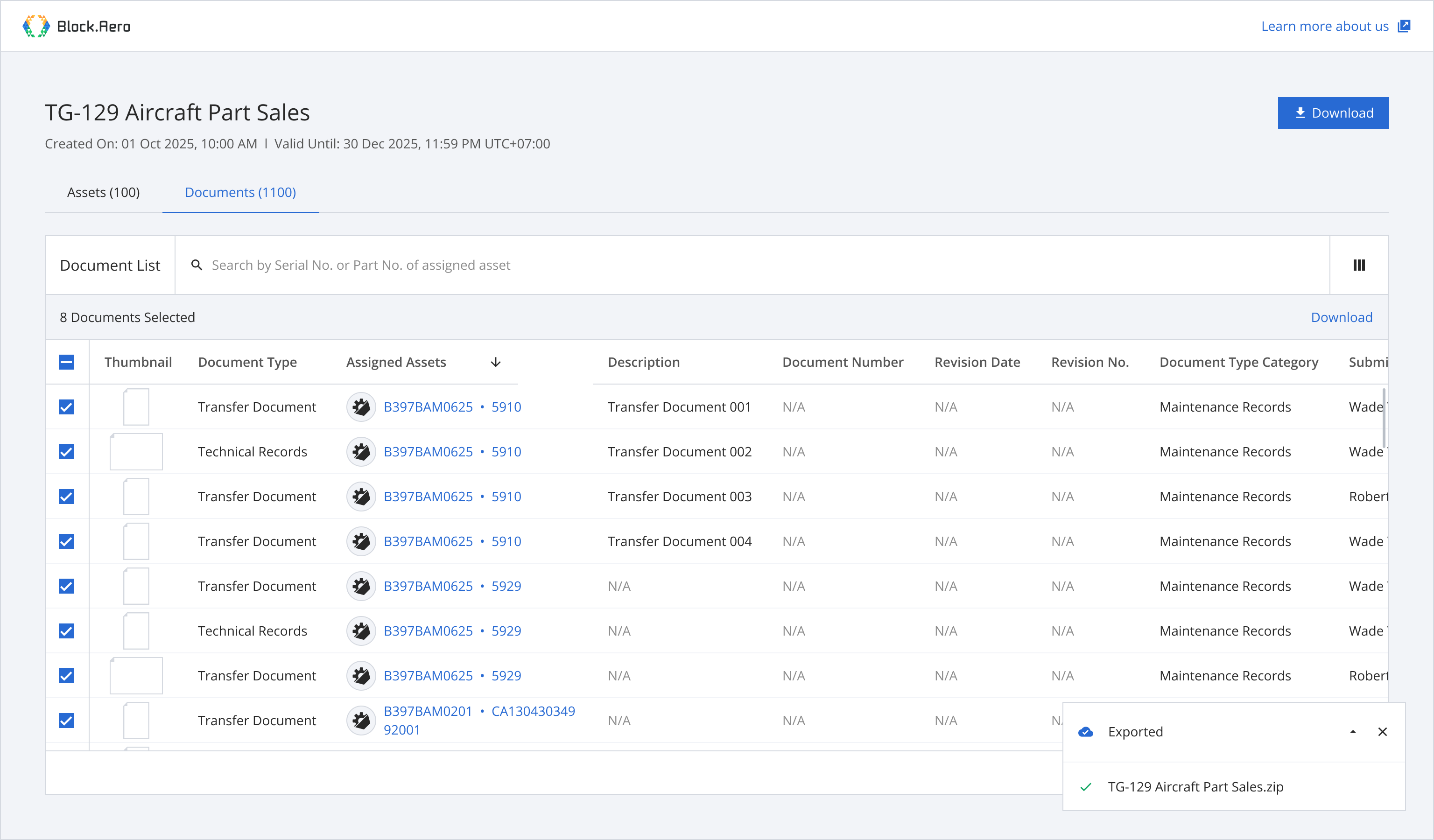
Once the documents are successfully downloaded, a success message will appear at the bottom of the screen.
Updated 8 months ago