

Bulk Operation
There are 2 ways to update data package details in bulk:
Option 1: Update Data Package Details Directly
Option 2: Update Data Package Details Using Excel Template
Option 1: Update Data Package Details Directly
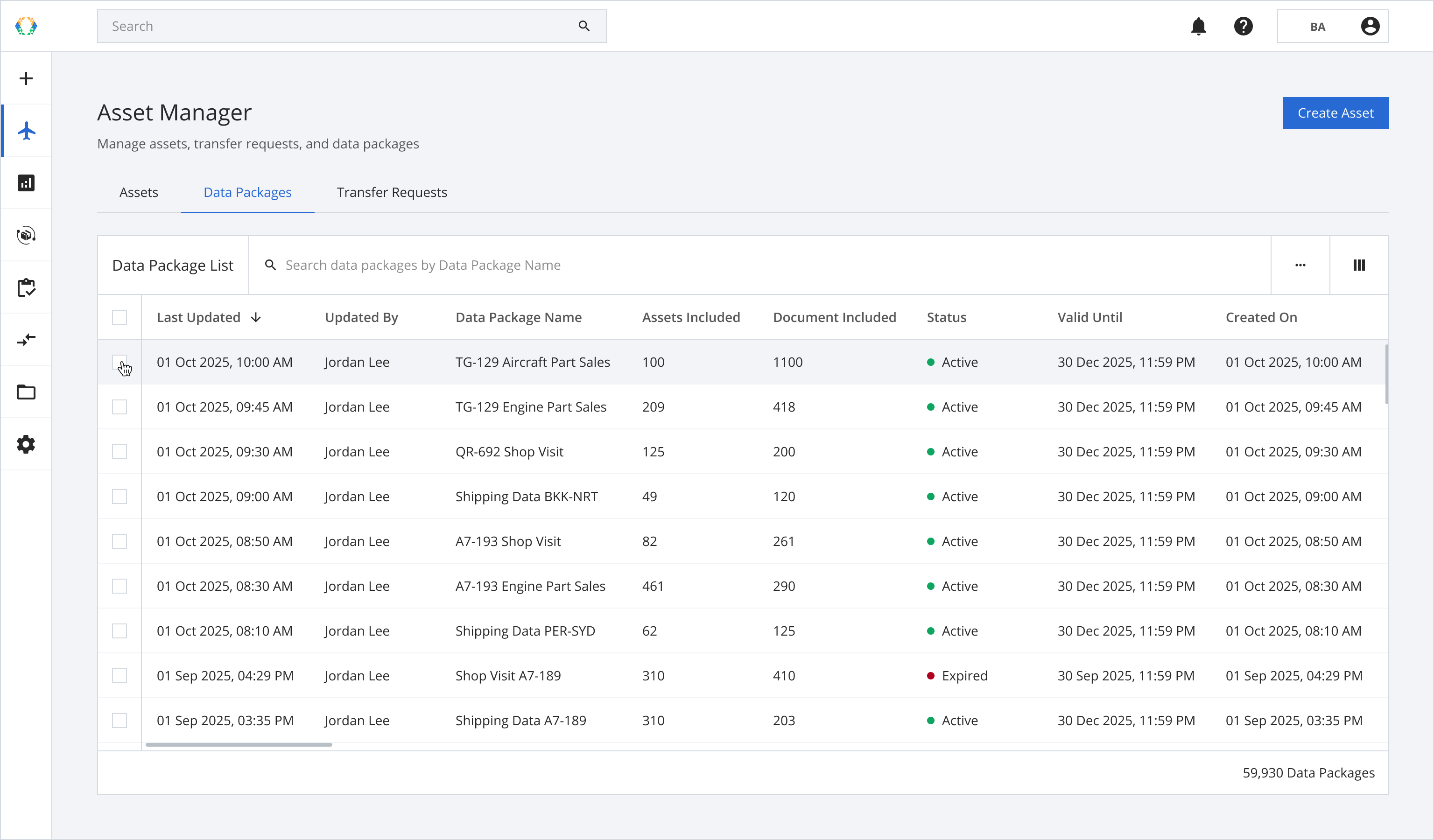
Step 1: From the data package list, select data packages you want to update.
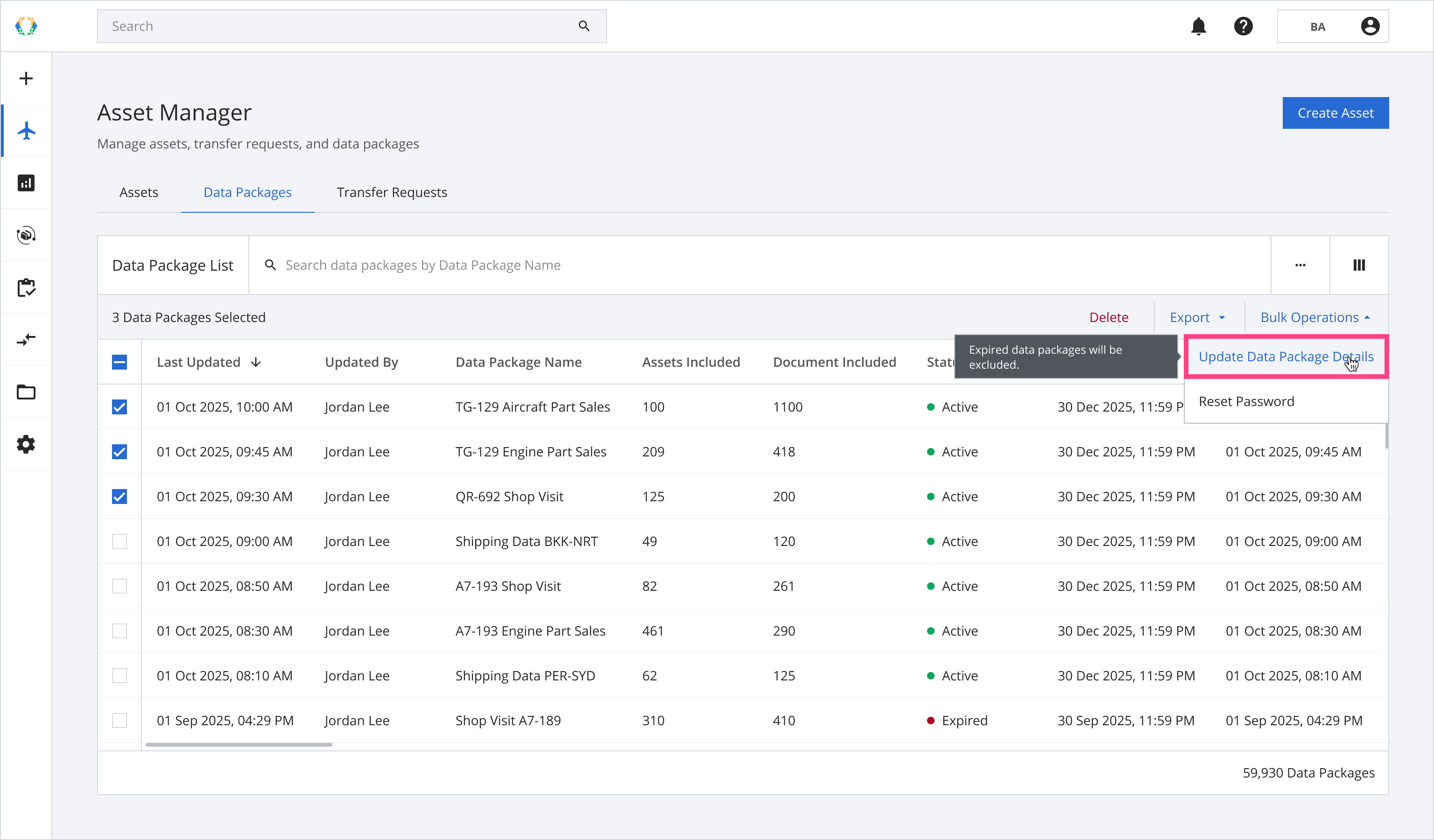
Step 2: Click ‘Bulk Operations’ and then select 'Update Data Package Details'.
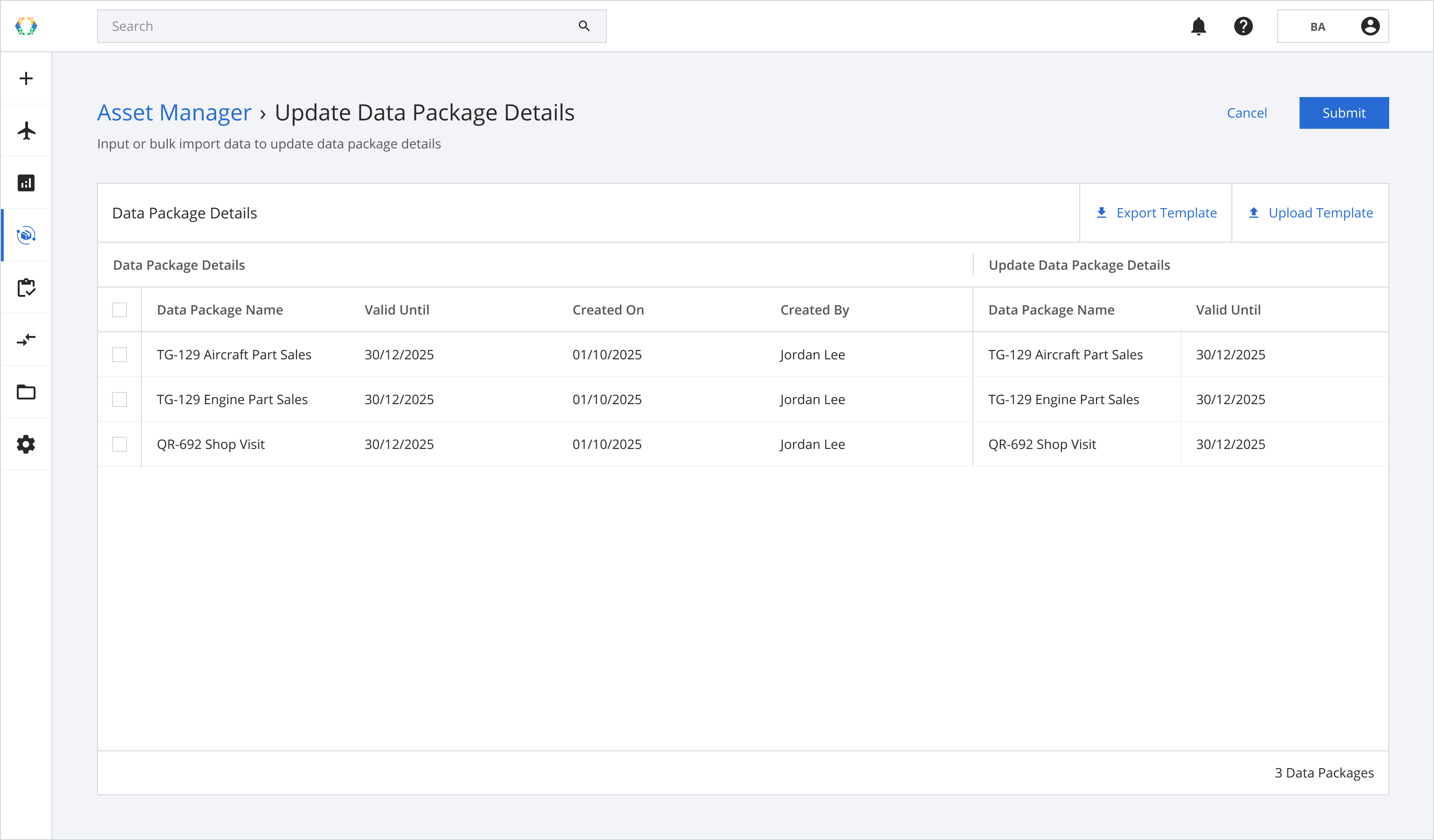
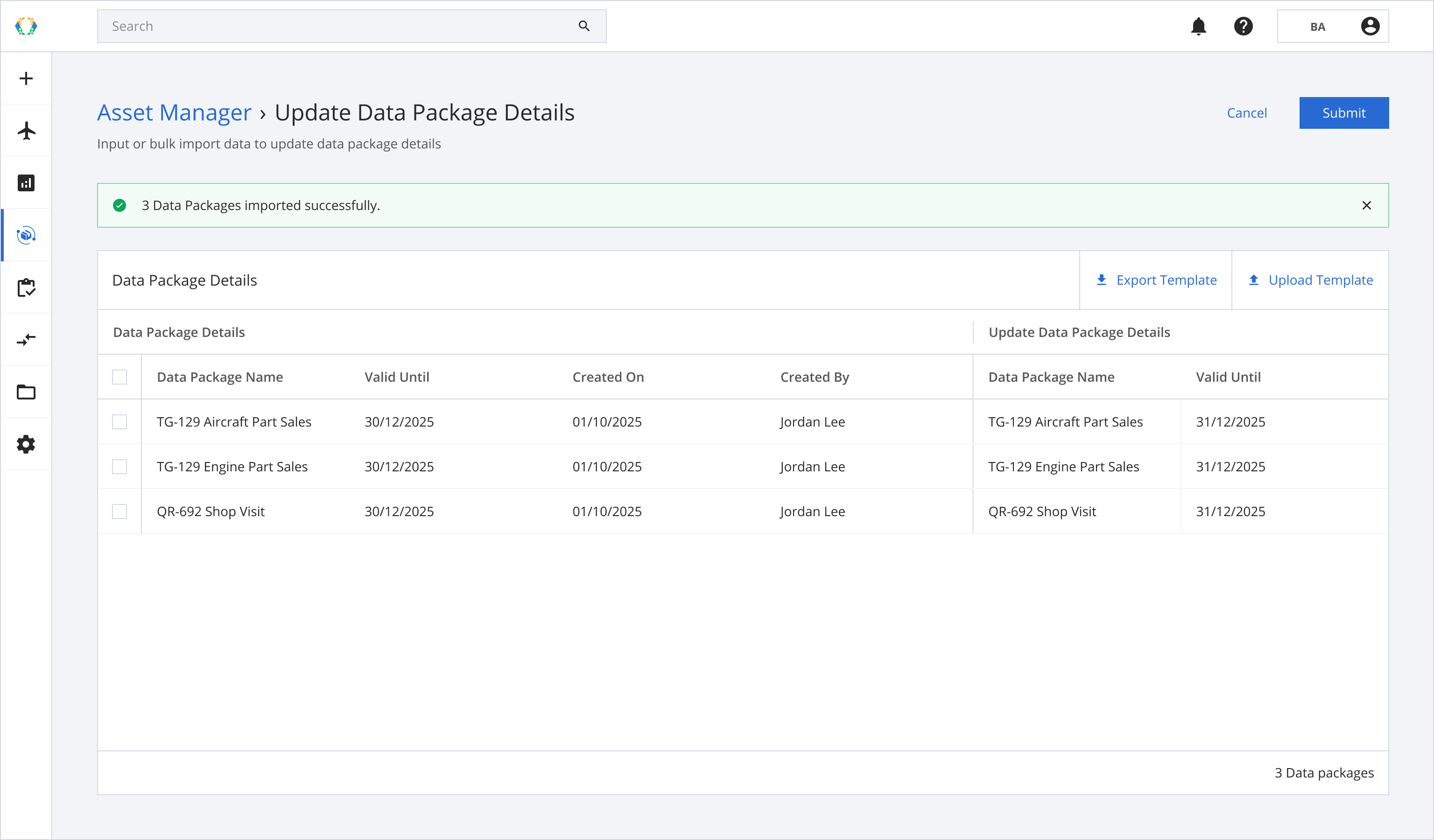
Step 3: You will be directed to update data package details page. Update data package details.
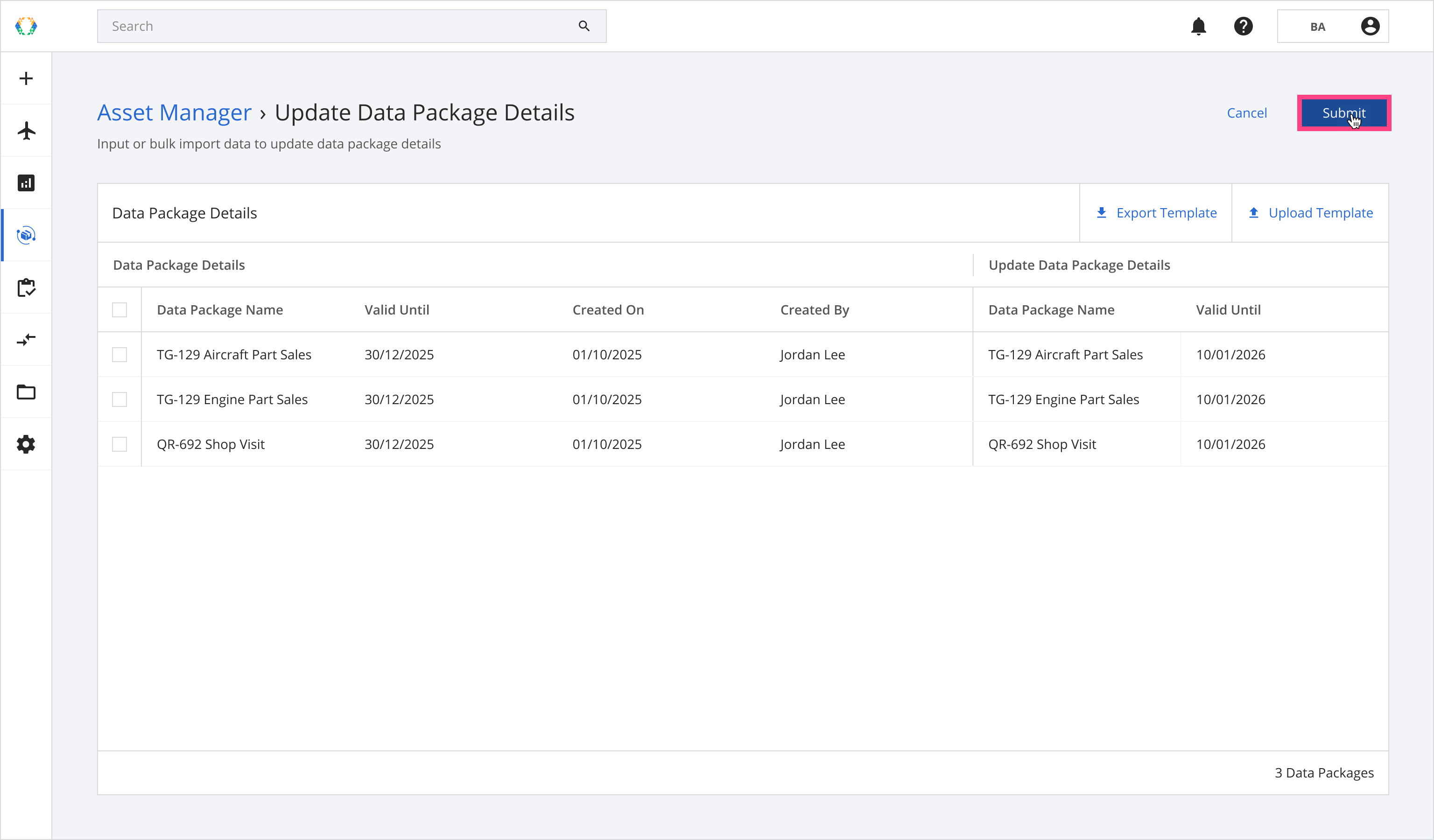
Step 4: Once you have updated data package details, click ‘Submit’.
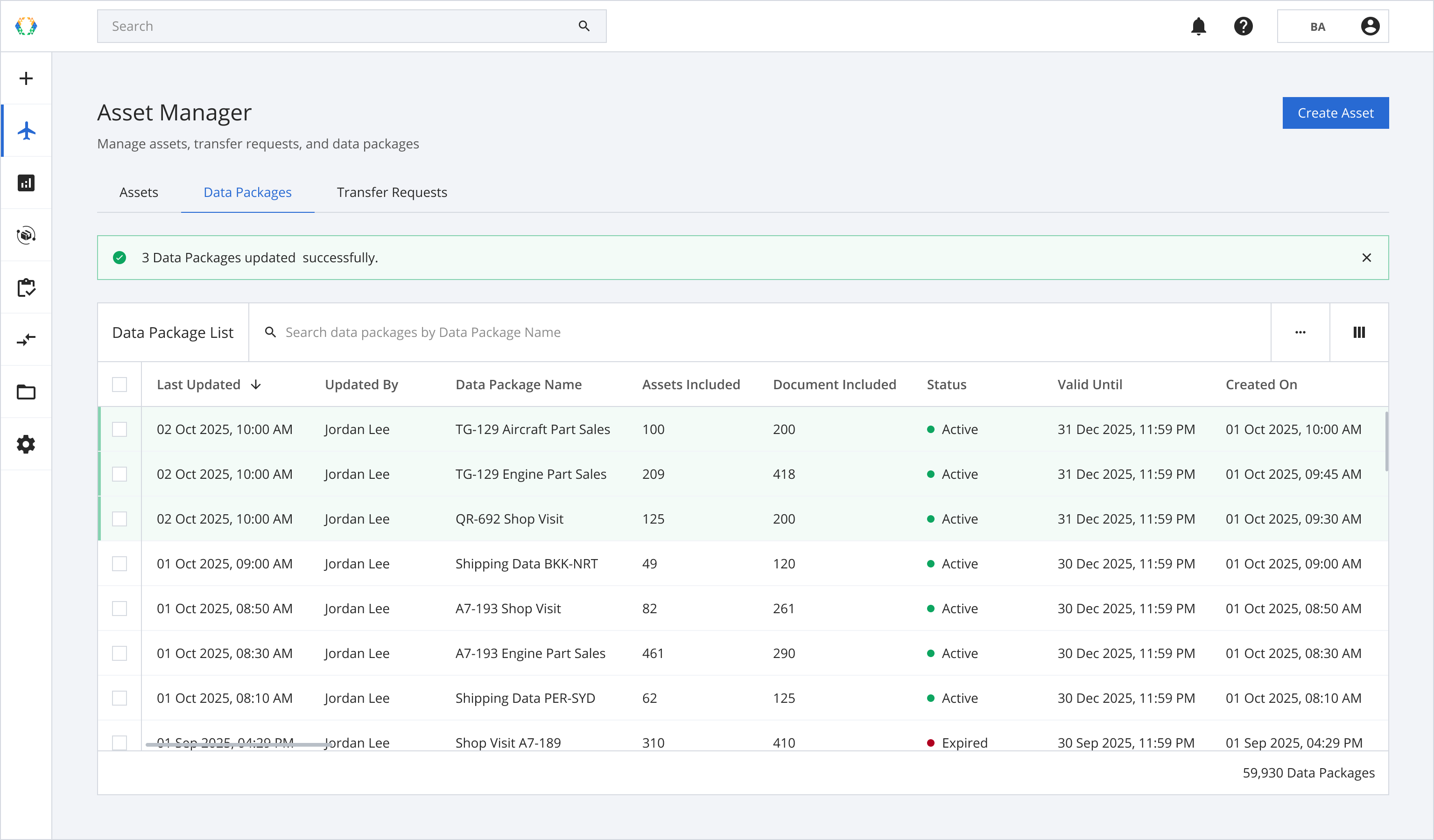
Once the data packages are successfully updated, a green banner will appear at the top of the data package list.
Alternatively, you may download Excel template and fill in data package data on your computer.
Option 2: Update Data Package Details Using Excel Template
Step 1: From the data package list, select data packages you want to update.
Step 2: Click ‘Bulk Operations’ and then select 'Update Data Package Details'.
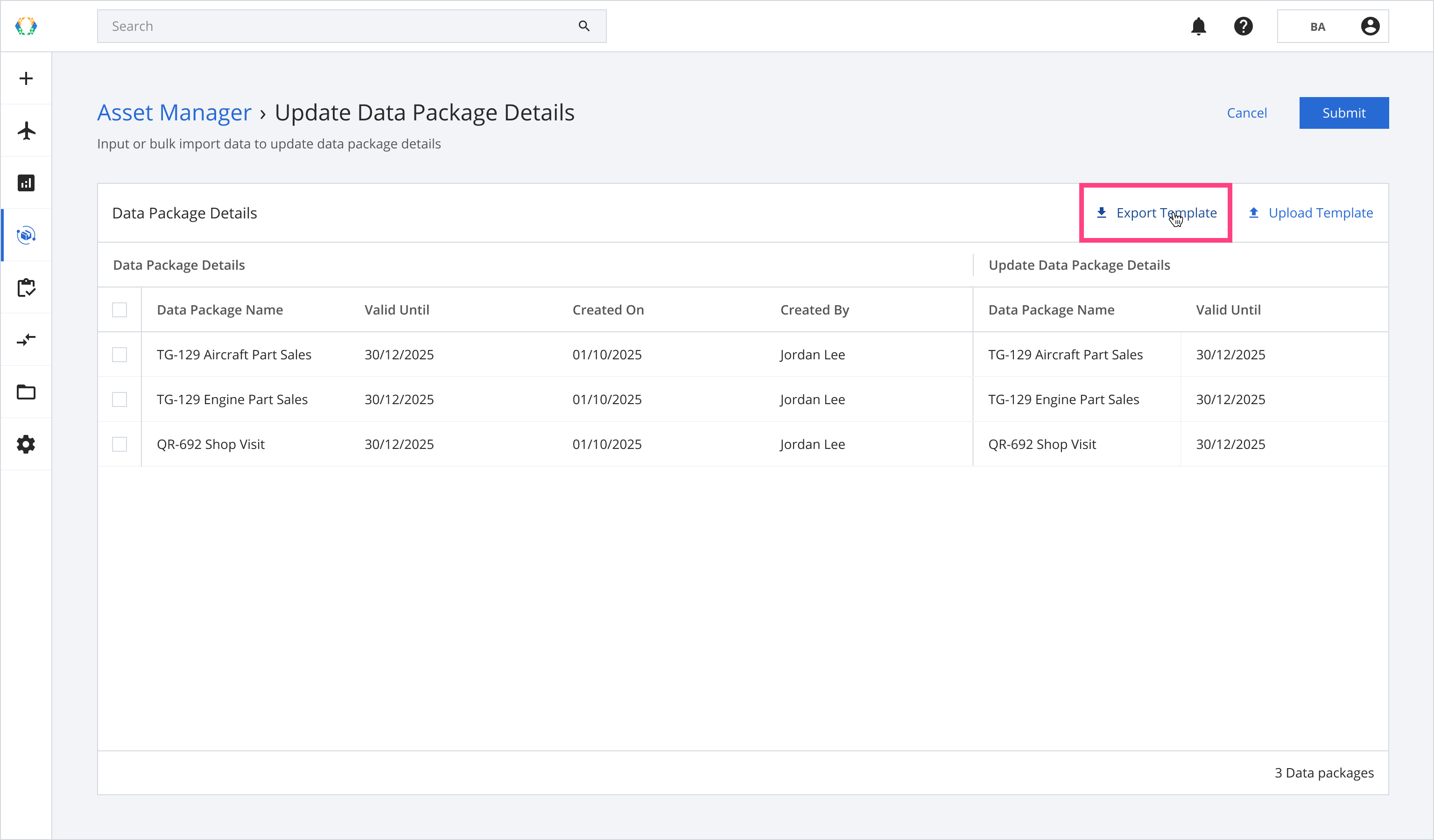
Step 3: You will be directed to update data package details page. Click 'Export Template'.
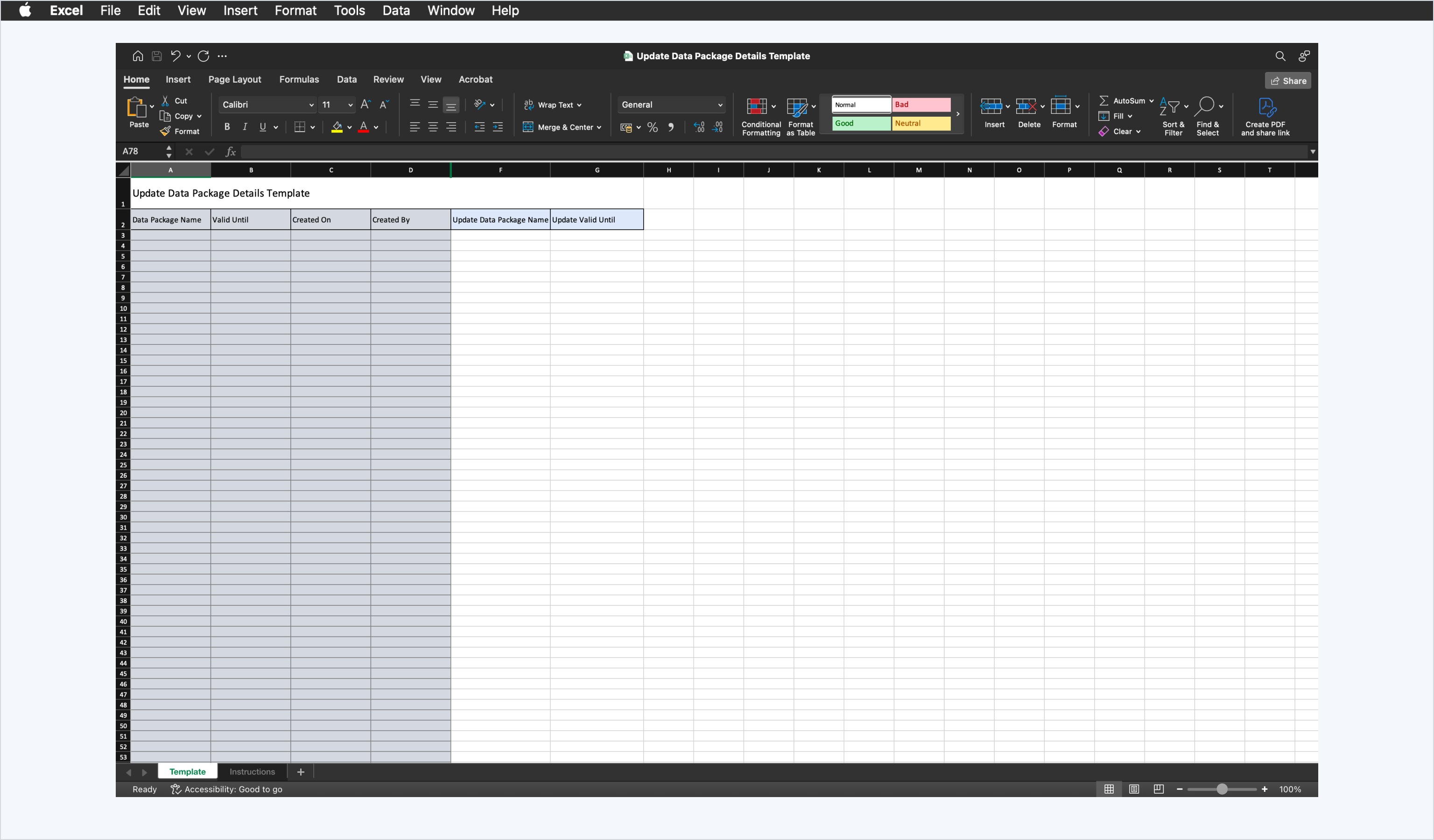
Step 4: Update data package details in Excel template.
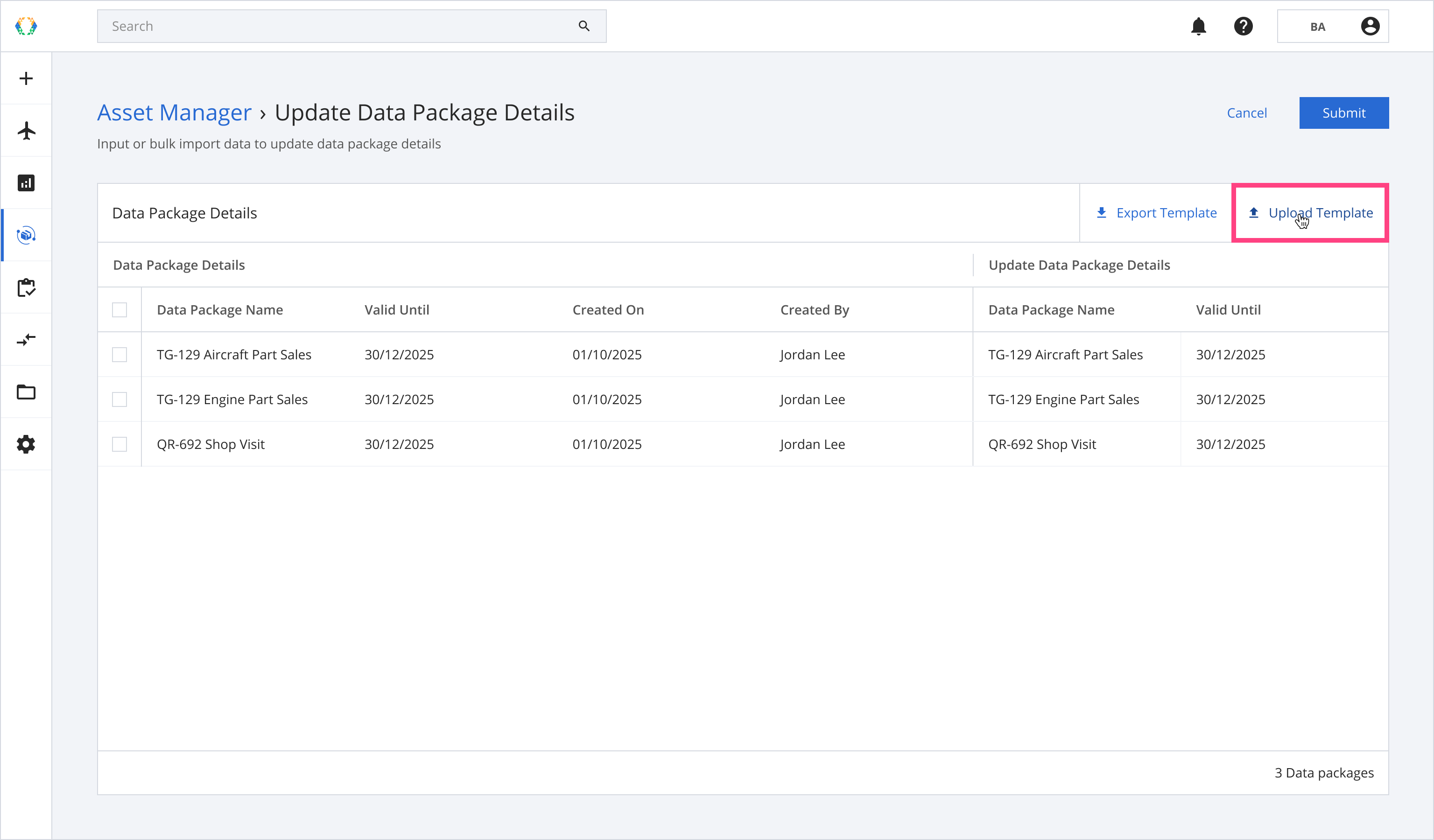
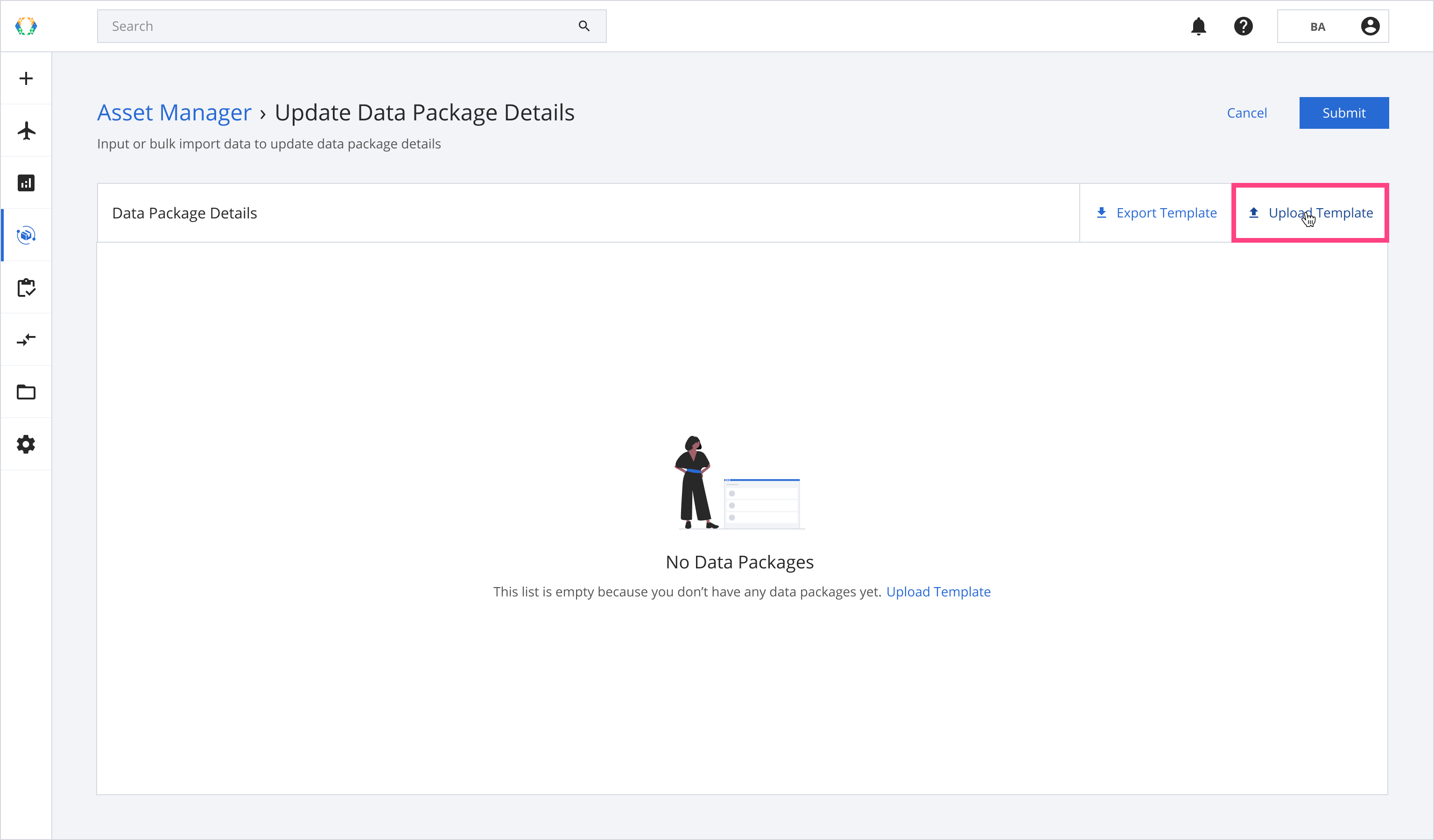
Step 5: Click 'Upload Template'.
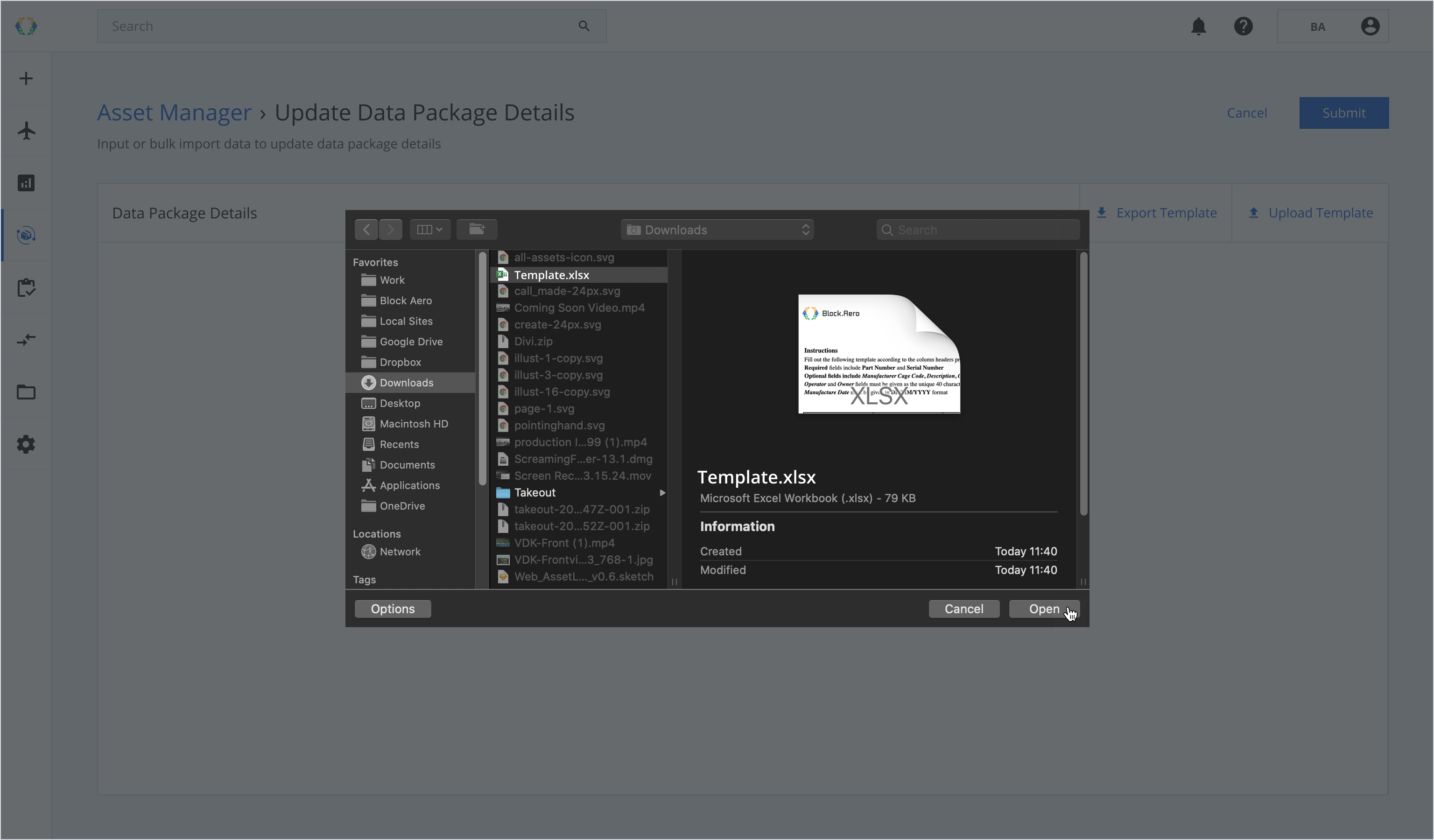
Step 6: Select the Excel template from your computer.
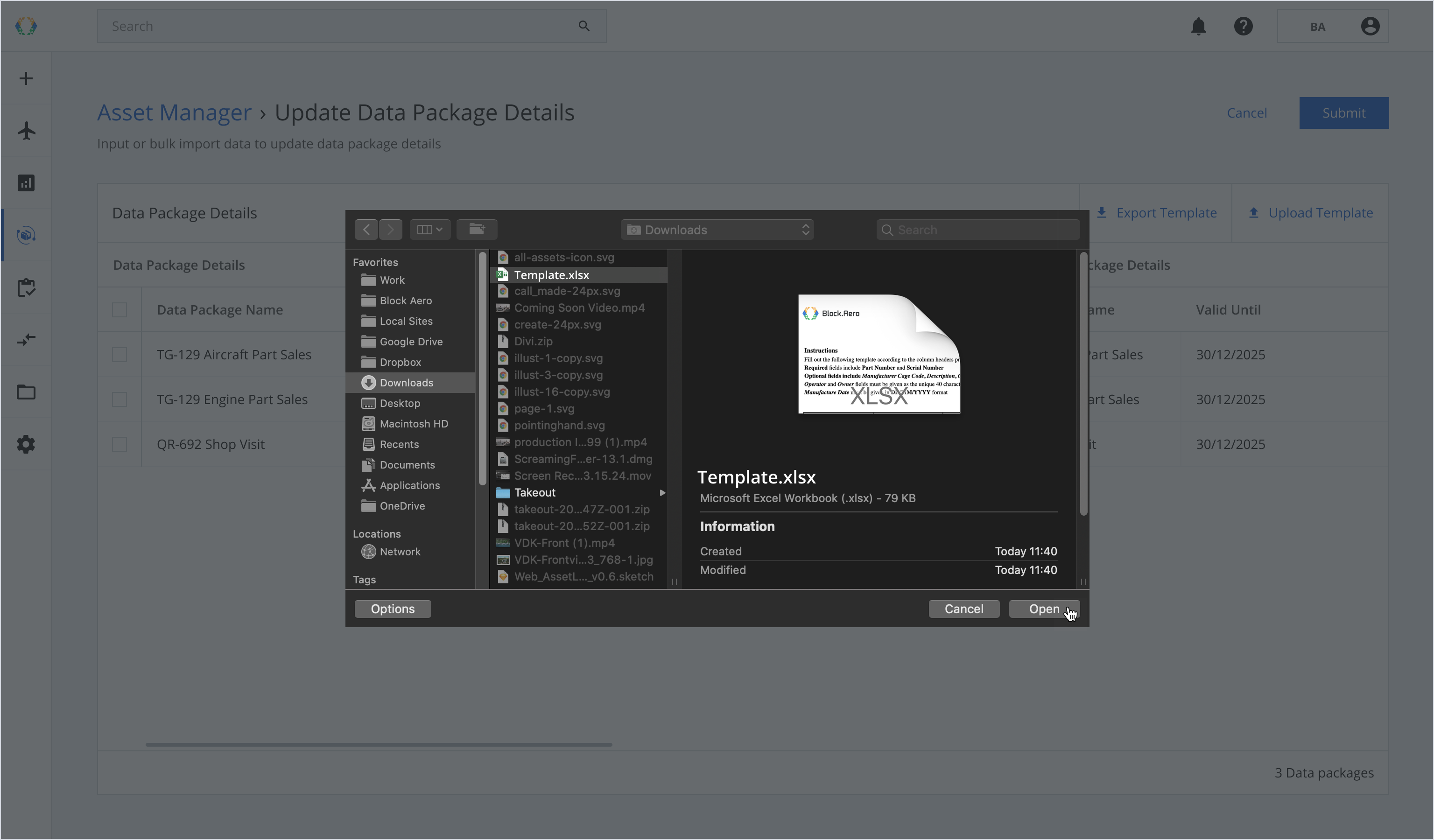
Step 7: A confirmation message will appear. Click ‘Replace’ to start the upload.
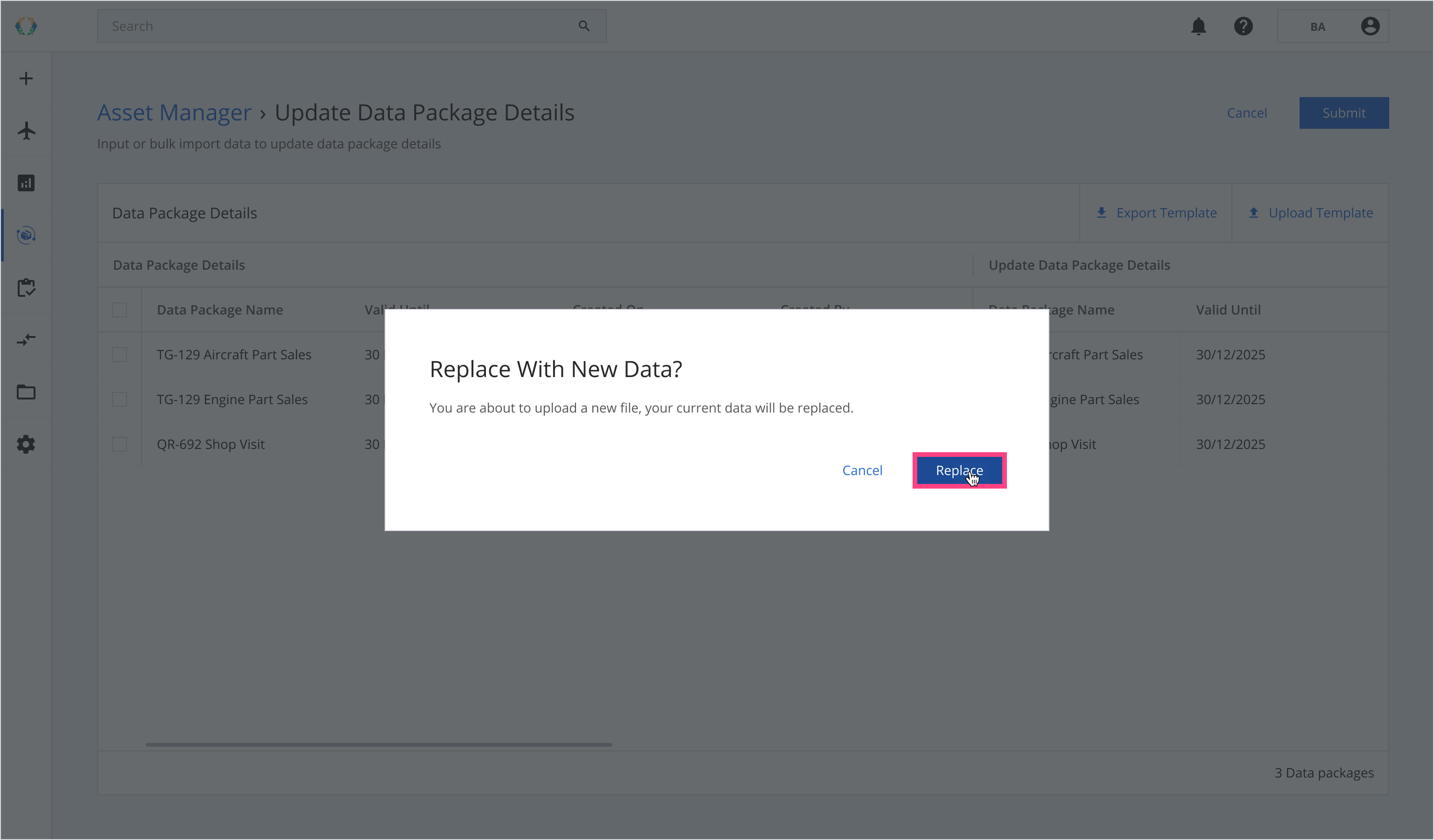
Once the Excel template data is successfully imported, a green banner will appear at the top of the data package list.
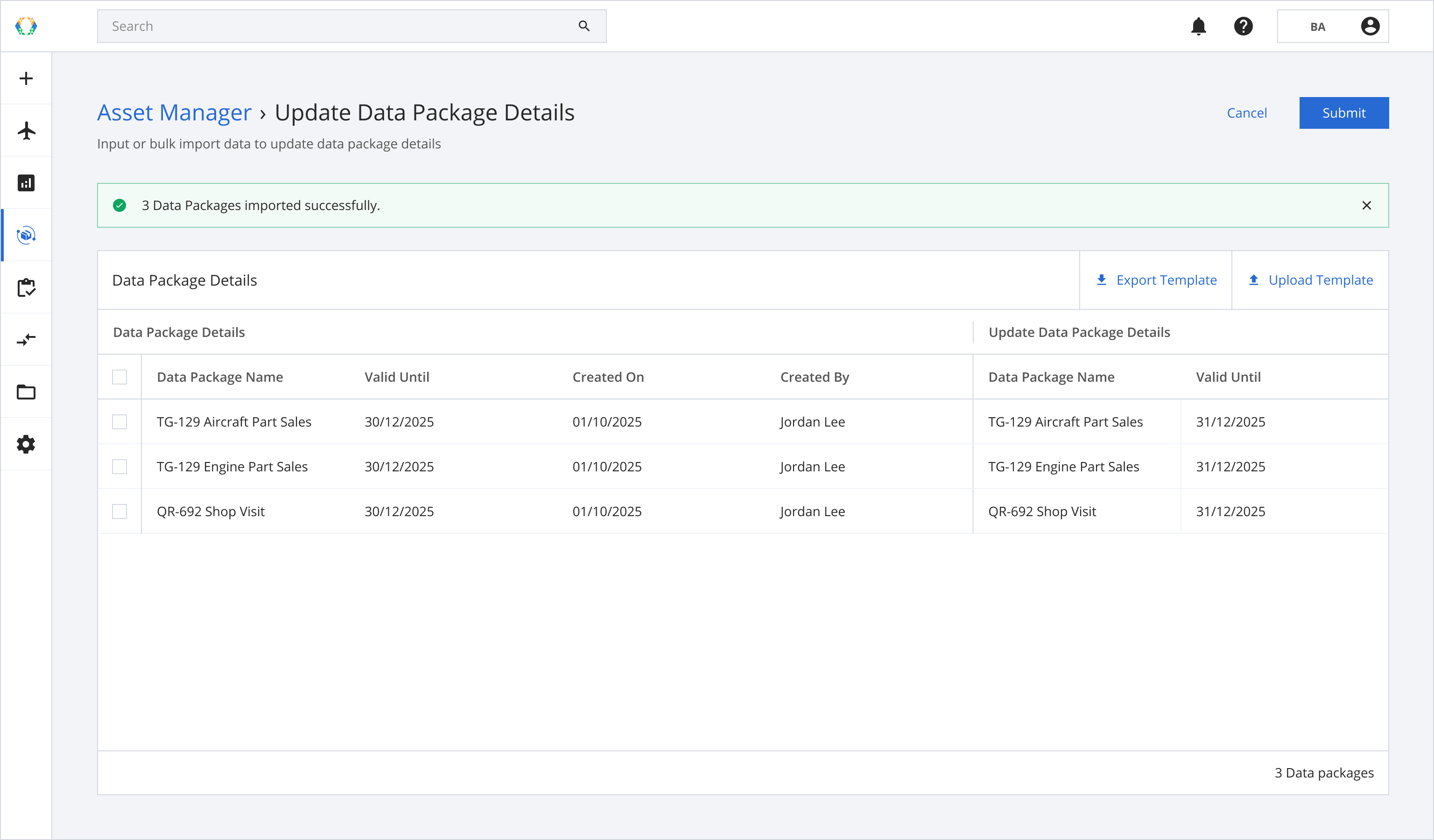
Step 8: Once you have updated data package details, click ‘Submit’.
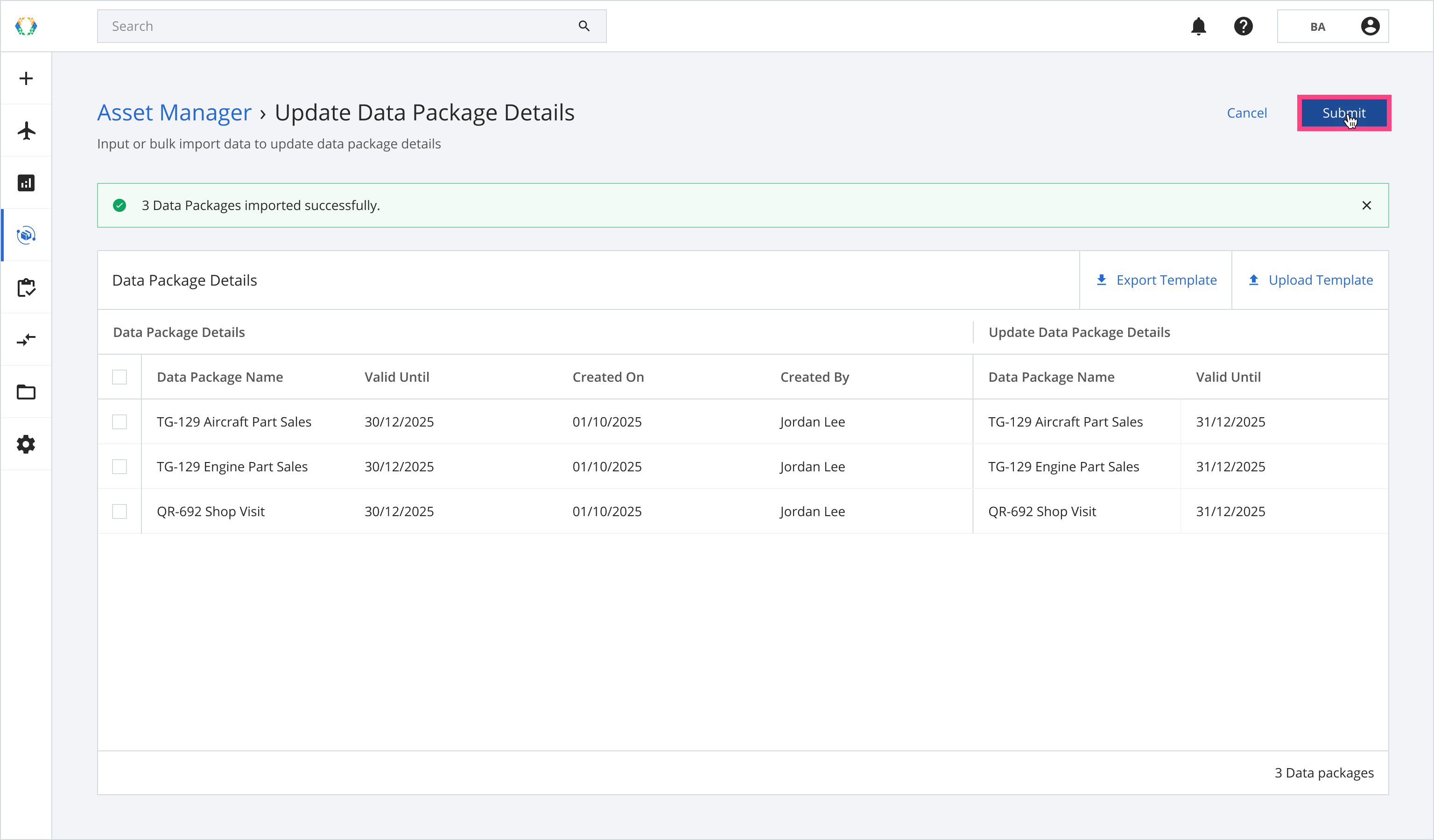
Once the data packages are successfully updated, a green banner will appear at the top of the data package list.
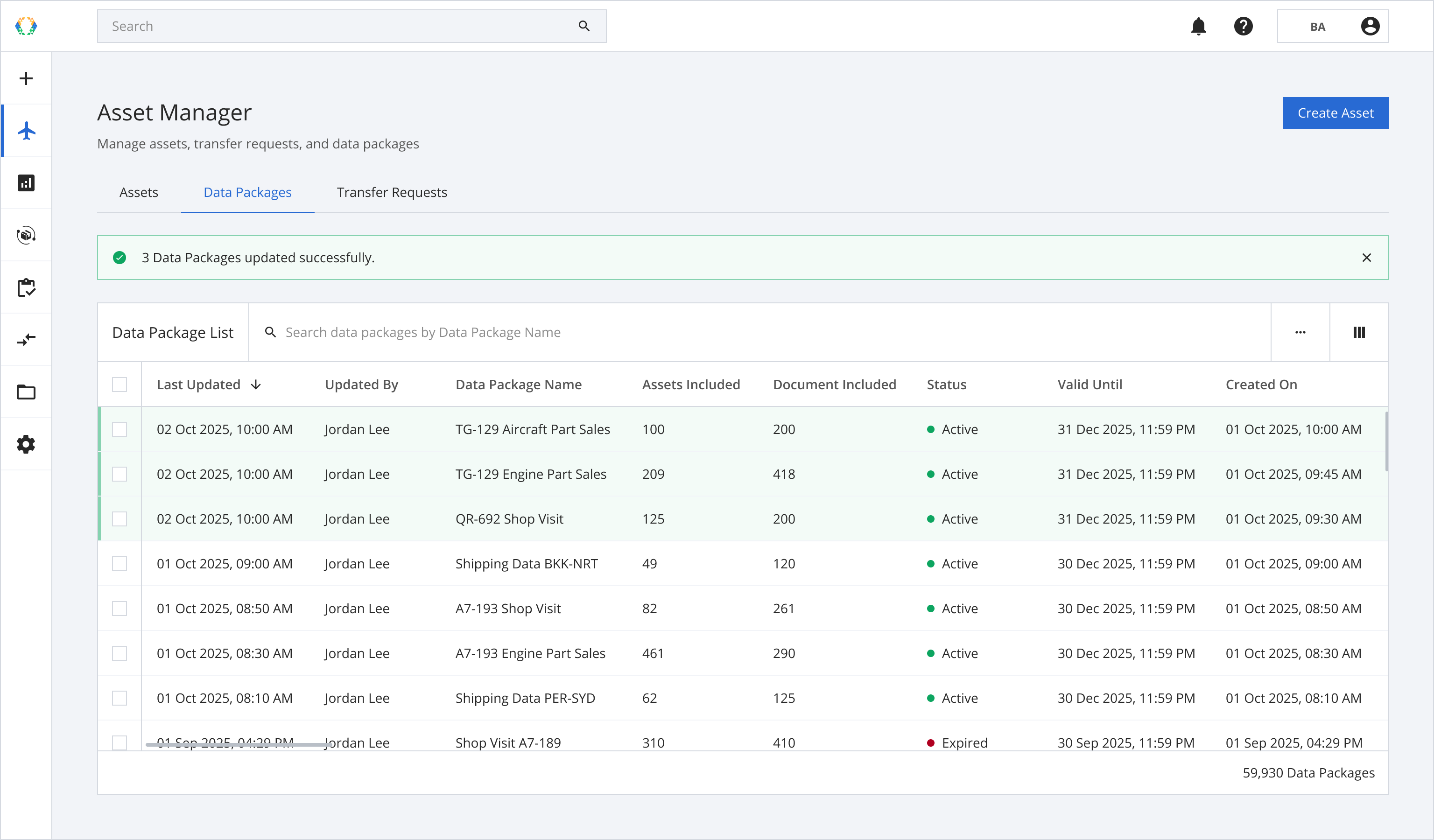
In case you already have Excel template, you can upload the existing Excel template through more option button on data package list.
Using Existing Template
Step 1: Click 'More Options' (...) and then select ‘Bulk Operations' and 'Update Data Package Details’ accordingly.
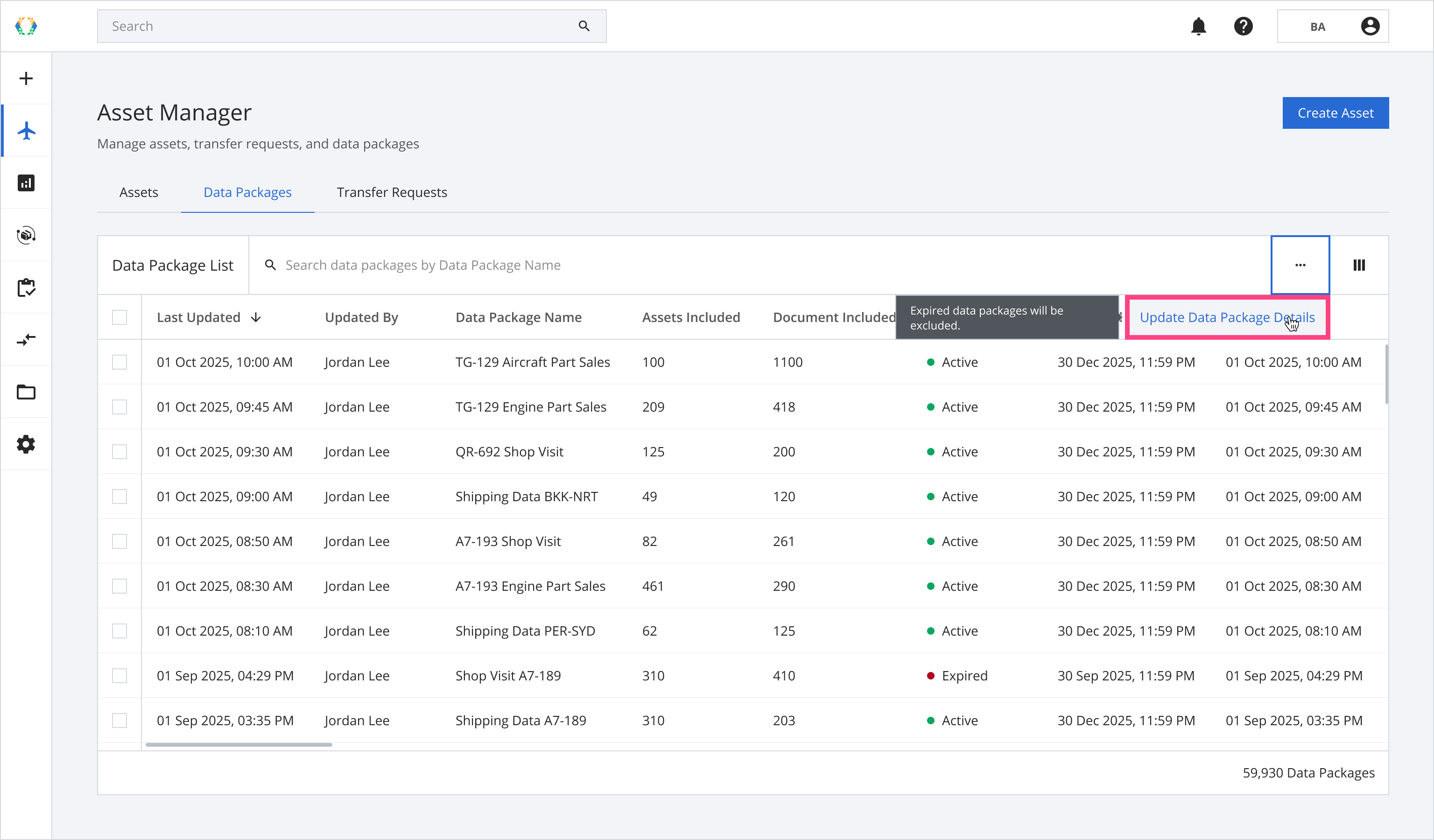
Step 2: You will be directed to update data package details page. Click 'Upload Template'.
Step 3: Select the Excel template from your computer.
Once the Excel template data is successfully imported, a green banner will appear at the top of the data package list.
Updated 8 months ago